Import permits by email
Daily workflow
Permit PDFs can be imported directly by email. Sending them from RAVS is the preferred method.
Send permits from RAVS
- In RAVS, search for the Work Order.
- Highlight all related permits.
- Right-click and select Send Copy of Selected Permits.
- In the pop-up window, select Email.
- Send the permits to
imports@trafficescortwardens.com.
You can include multiple permits in the same email.
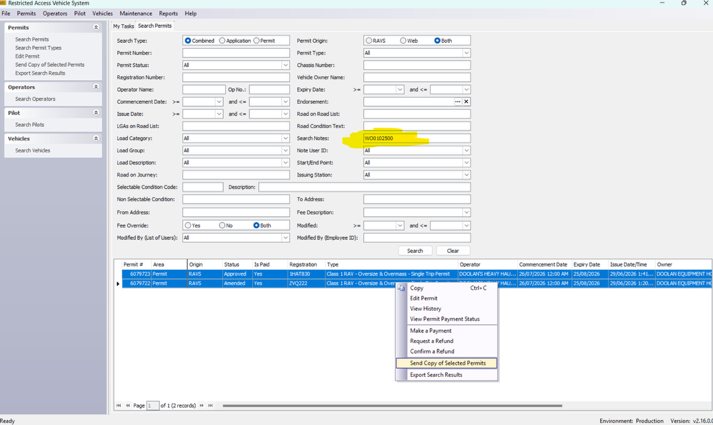
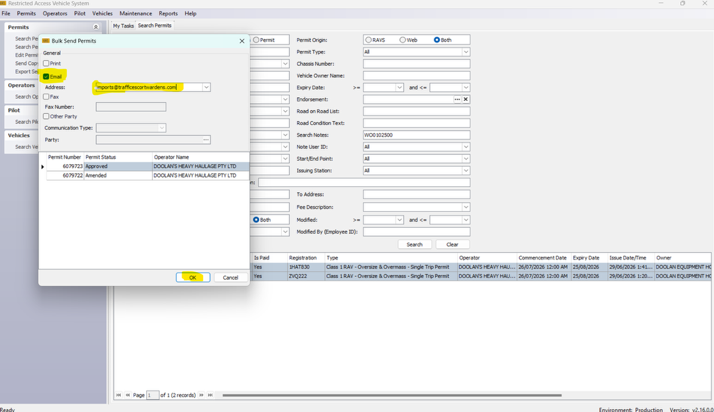
The system processes the attached PDFs and adds recognised details to the Permits section of the Work Order. This may include permit numbers and dates, vehicle registrations and expiry dates for WA plates, permitted dimensions, axle spacings and special conditions.
Review the imported permits
You will receive an email advising whether the import succeeded or failed.
- Open the Work Order.
- Scroll to Permits.
- Select the permit you want to review.
- Compare the imported details with the original permit PDF.
- Correct any missing or incorrect details, then save the permit.
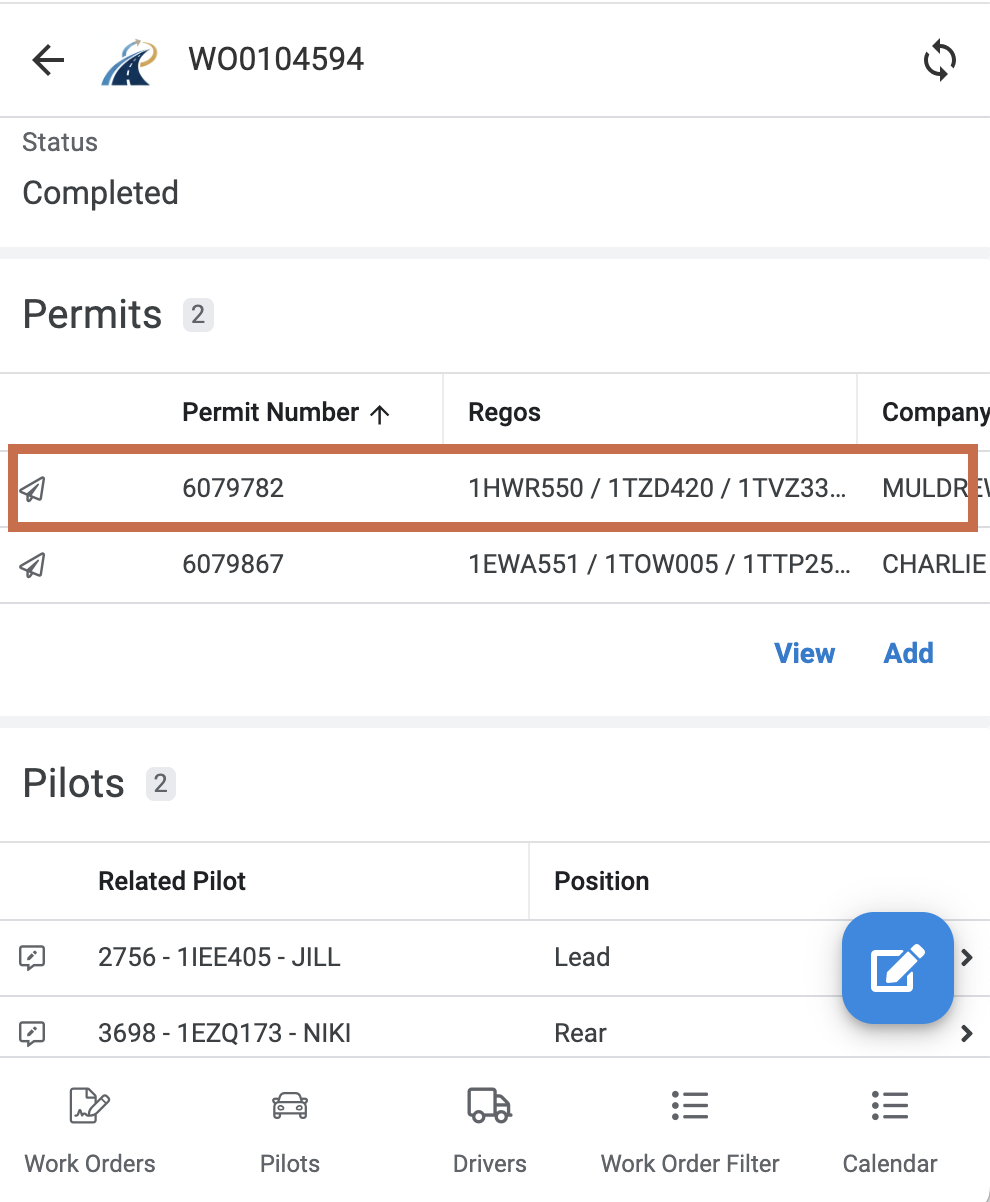

Axle spacings are normally imported unless the permit is for a low loader or an 8-tyre-per-axle configuration. Check platform axle spacings carefully.
Changing the axle configuration resets axle spacings
If you edit the permit and change the Axle Configuration, the saved axle spacings will be reset. Re-enter and check the spacings before saving.
View the Permit PDF
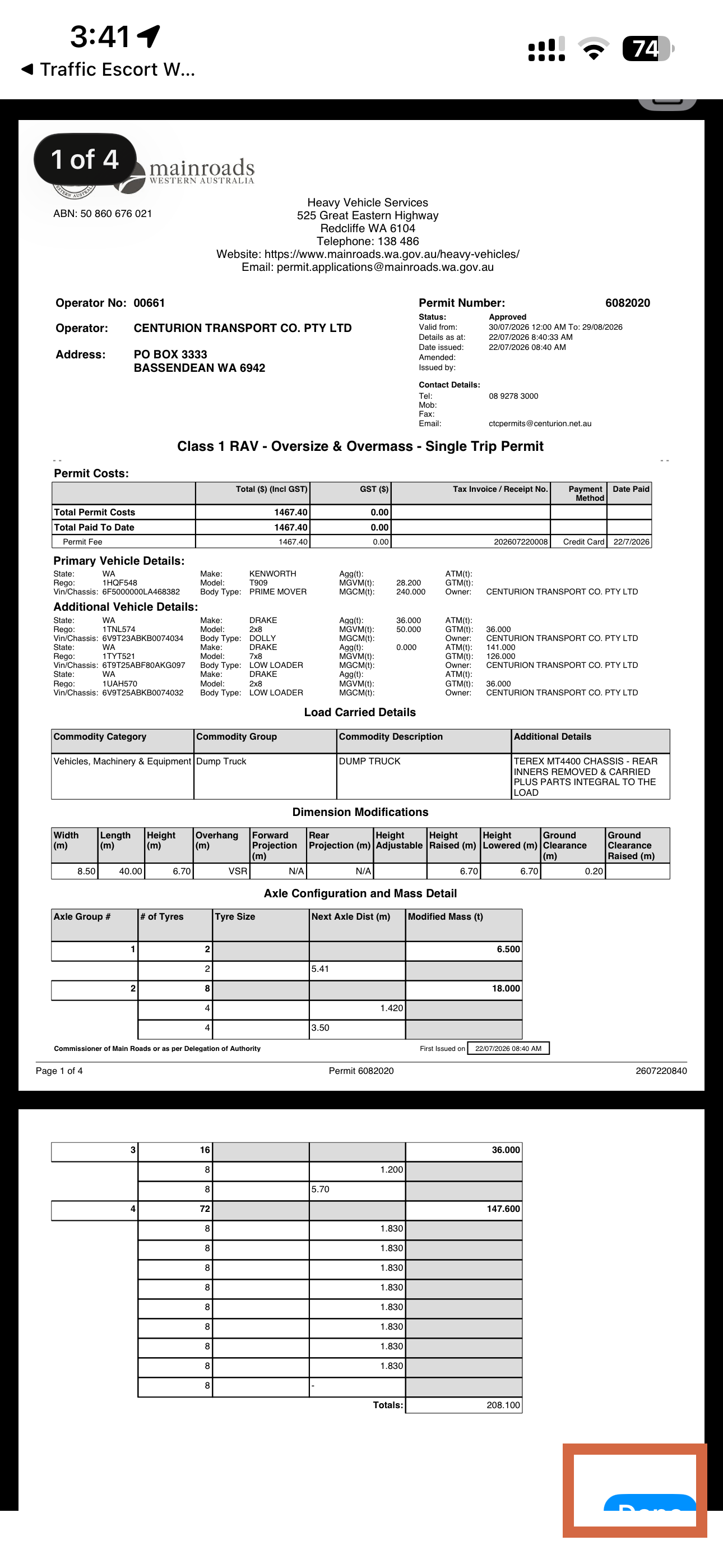
You can view the PDF permit that has been imported.
- Open the Work Order.
- Scroll to Permits.
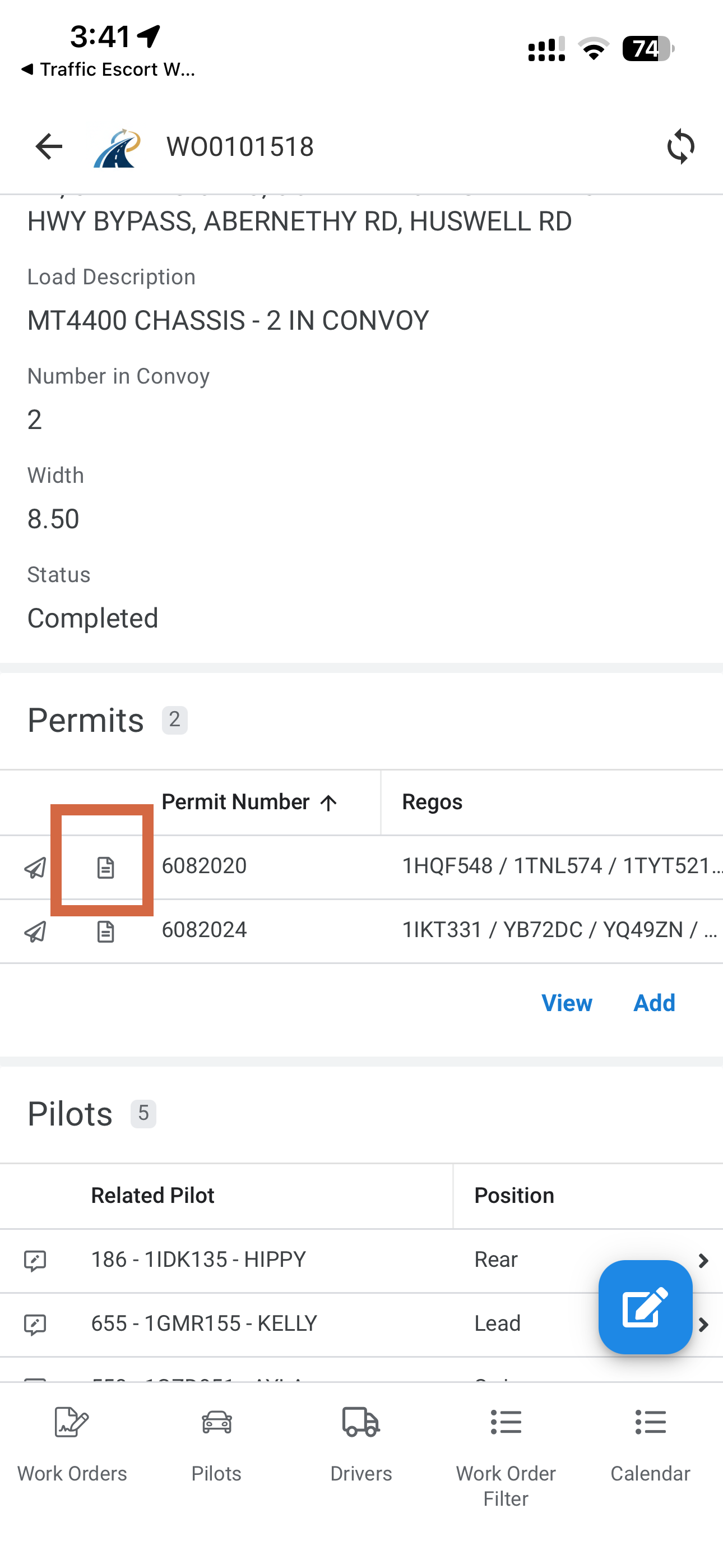
- Select the permit you want to review and click on the PDF icon next to the Permit Number.
- The Permit will be dislplayed to you. 5 Click on the partially hidden Done button to return to AppSheet
Import the same permit again
A permit that has already been imported will normally be skipped. To replace it:
- Create a new email from your work address.
- Attach the permit PDF.
- Put
Overwriteand the Work Order number in the subject, for exampleOverwrite WO0104759. - Send it to
imports@trafficescortwardens.com.
You may also send permit PDFs from your own authorised email address. RAVS remains the preferred method and sends only paid permits.