Record actual load measurements
Daily workflow
Open the permit
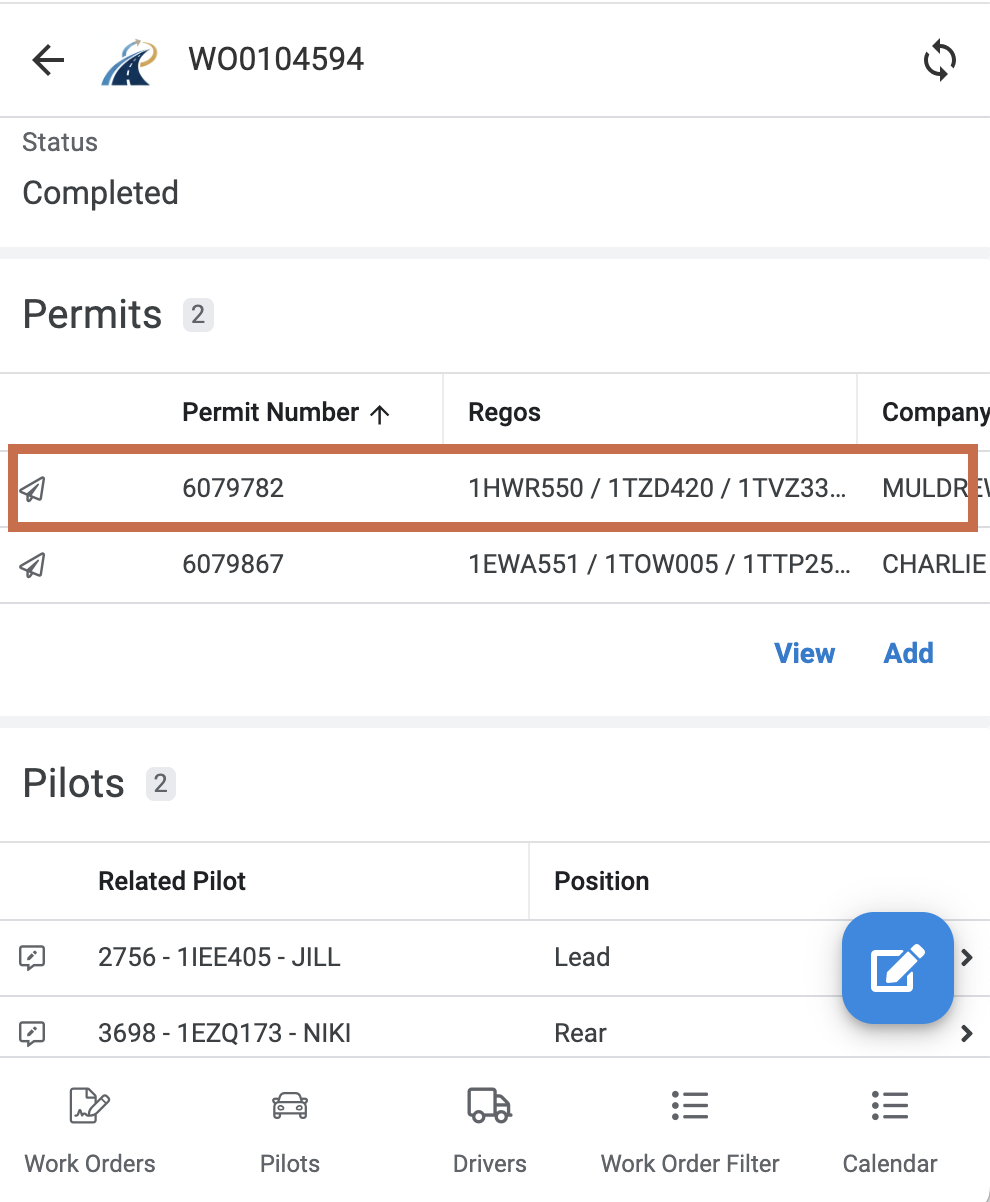
- Open the Work Order.
- Scroll to Permits.
- Select the permit number you need to update.
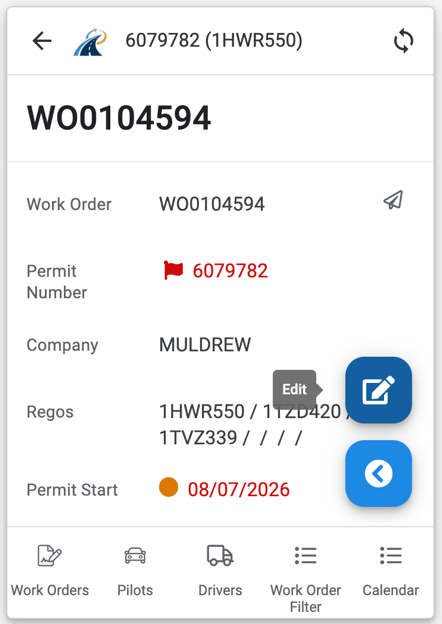
A permit number shown in red indicates that important details are missing or require attention.
Select Edit in the bottom-right corner to open the permit form.
Enter the actual measurements
Complete the applicable Actual fields, including:
- width, height and length
- raised and lowered heights
- ground clearance and condition height
- dolly and trailer ground contact
- overhang and forward or rear projections
When Actual Overhang is entered as 0, the app will save it as VSR.
Measure the width
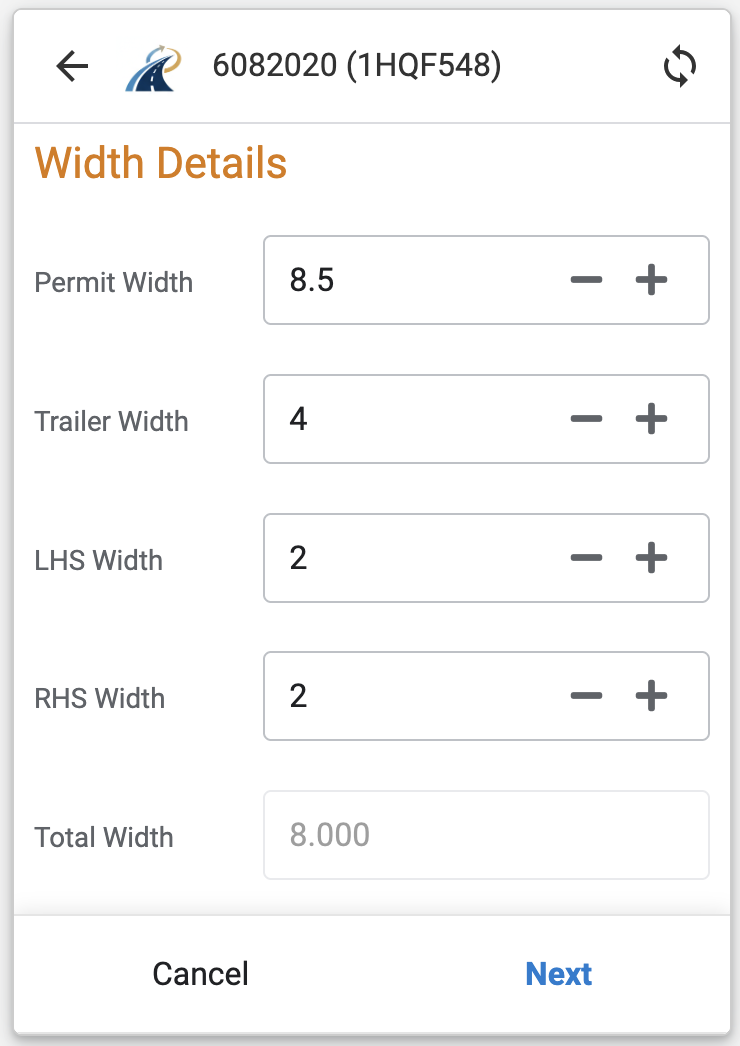
Width uses three measurements:
- trailer width
- distance from the left side of the trailer to the edge of the load
- distance from the right side of the trailer to the edge of the load
Enter each value in the relevant field. The app calculates the total width.
Record a ground-clearance condition
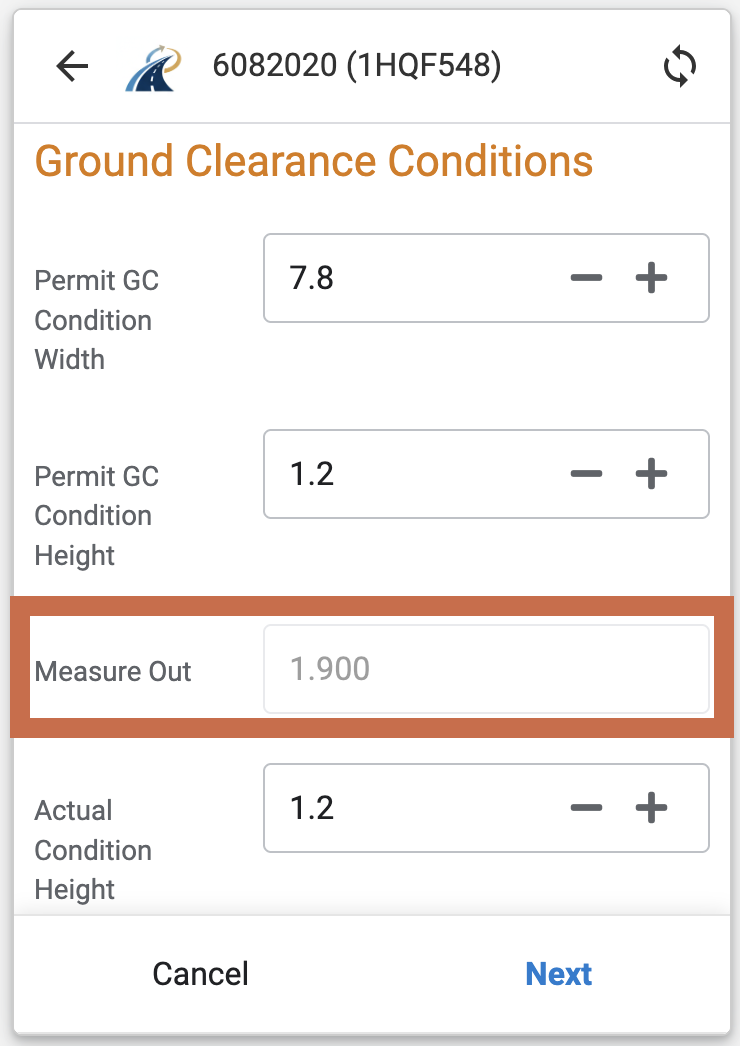
Where a ground-clearance condition applies, such as 1.2 m at 6.5 m, the app uses the trailer width to calculate the point at which the condition height must be measured.
Measure out from the side of the trailer to the displayed distance, then enter the height in Actual Condition Height.
Check measurement warnings
A warning means the entered measurement does not match the permitted limit or expected tolerance. Recheck the measurement and permit before proceeding. Saving the form records the value; it does not confirm that the movement is authorised.
Save the measurements
- Select Next.
- Review the entered values.
- Select Save.
The actual measurements are now saved against the permit.