Check permit axle spacings
Daily workflow
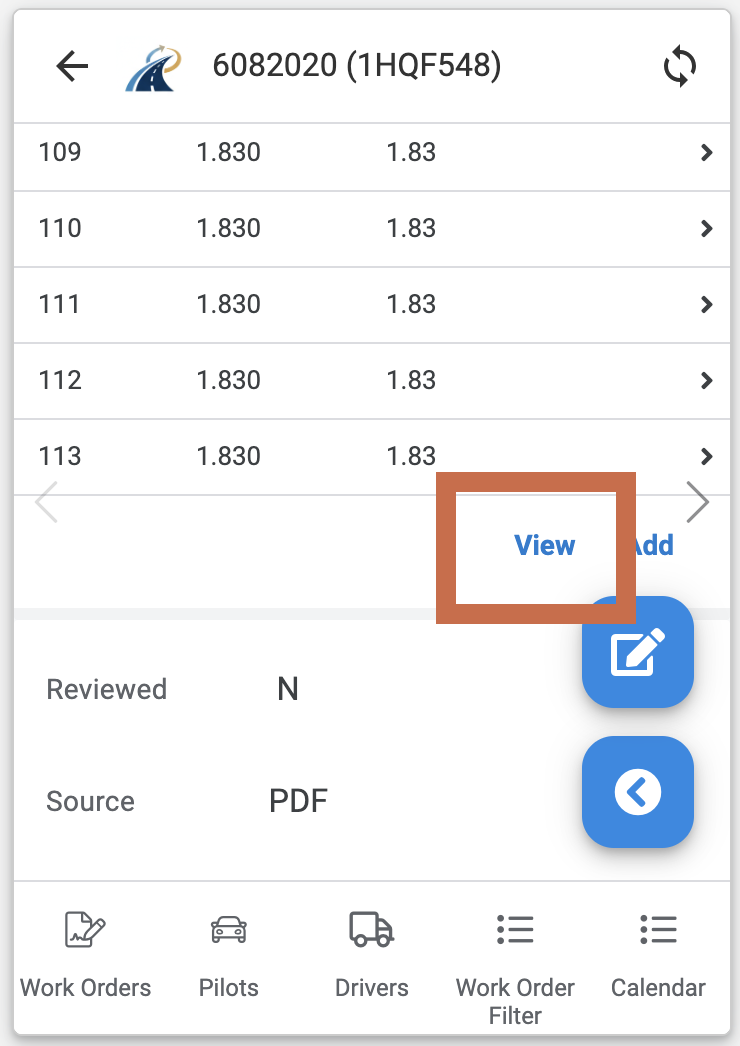
After saving the permit, open it and scroll to the Related Axles table.
Open the axle table
Select View beneath the axle table.
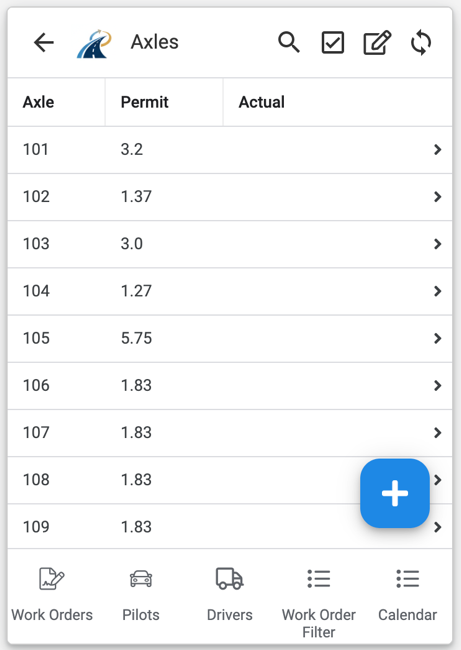
Use quick edit
Select the edit control in the top-right corner. Quick edit lets you enter the spacings directly in the table rather than opening each axle separately.
Enter the permit spacings
Enter each permitted axle spacing in the corresponding row. Check the sequence carefully against the permit.
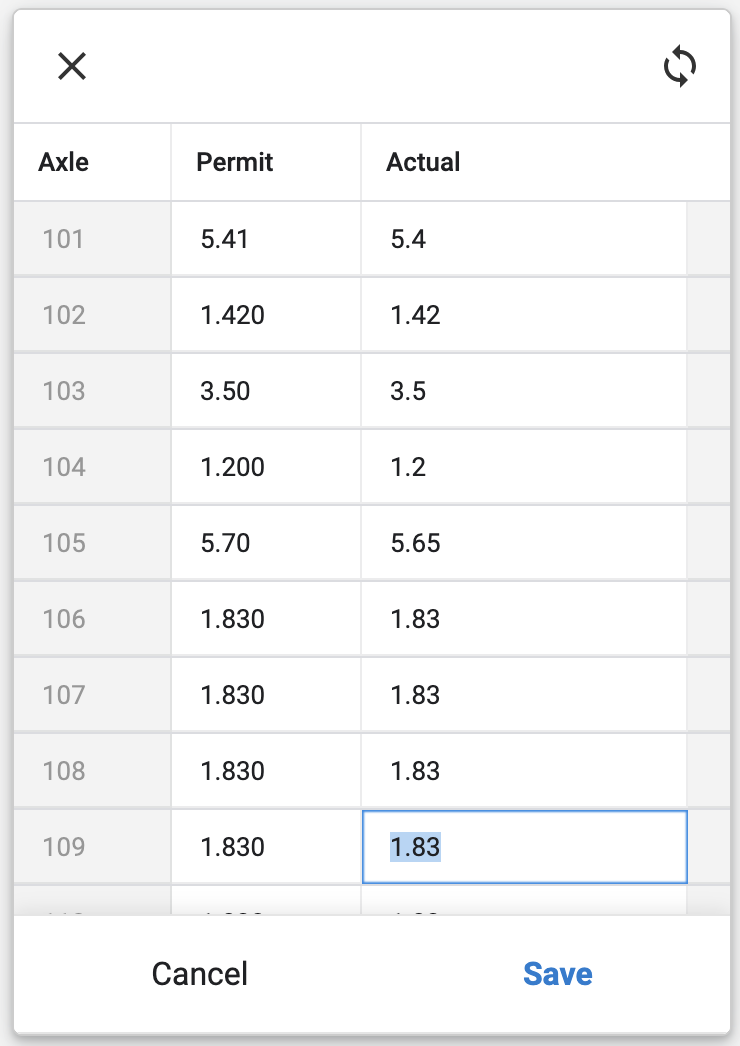
Select Save to return to the Work Order.